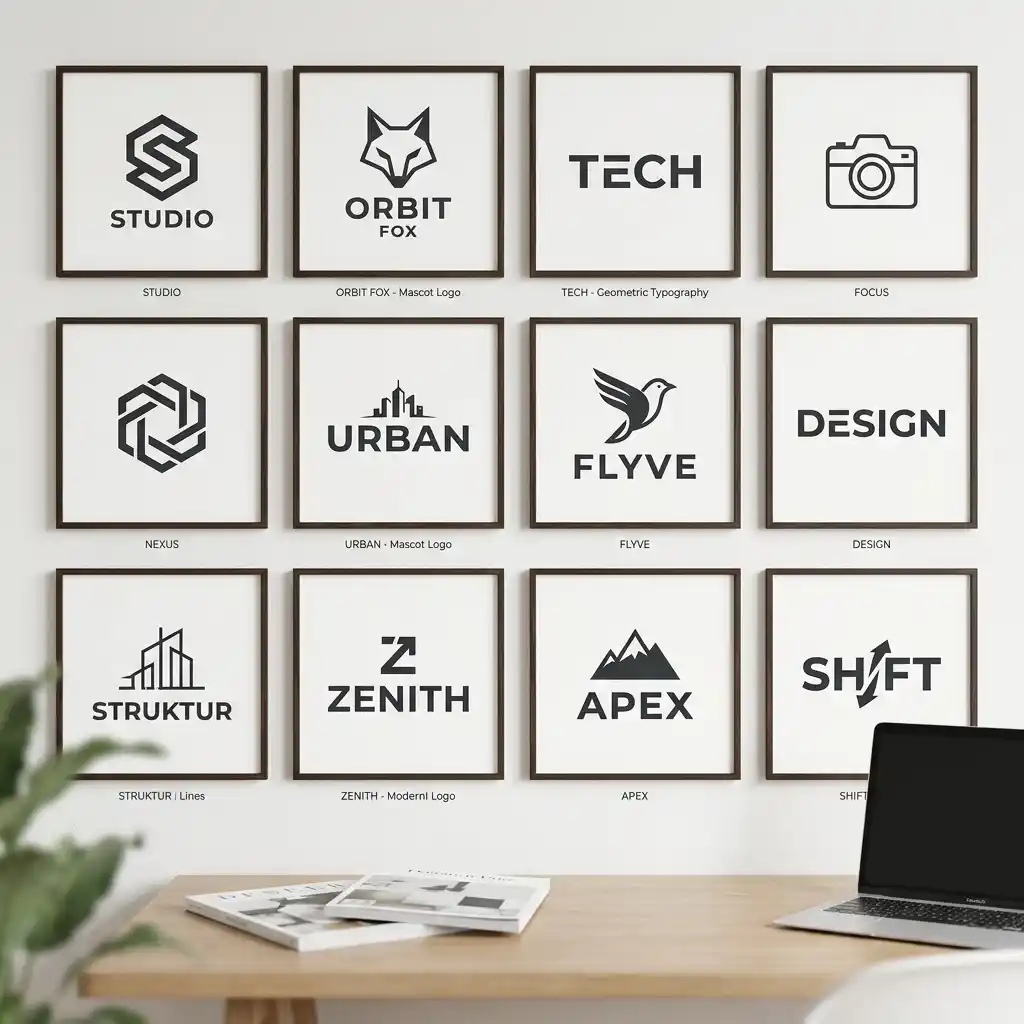
In the early days of generative AI, logo design was one of the most frustrating use cases. Models like Midjourney v3 or DALL-E 2 produced blurry, highly shaded, complex 3D shapes covered in gibberish text. For a graphic designer, these outputs were practically useless for creating scalable brand assets. The algorithms struggled to grasp what a "logo" really is: a simplified symbol representing a core identity, optimized for reproduction across digital and physical media.
With the launch of Midjourney v6, the playing field has changed entirely. The AI engine is now exceptionally skilled at understanding commands for flat design, solid colors, clean boundaries, and geometric composition. While the model still doesn't natively export SVG vector formats, it has become the ultimate brainstorming, sketching, and mood-boarding companion for designers looking to construct professional-grade logos. In this masterclass, we will cover the core principles of prompting clean logos, showcase copy-paste formulas, and show how to transition your generative ideas into production-ready vector assets.
1. Understanding the Midjourney v6 Prompting Logic for Logos
Midjourney v6 was trained on a much larger database of graphic art and design directories, meaning it recognizes terms like "vector," "flat design," and "monoline" far better than its predecessors. However, it still has a tendency to default to illustrative and photorealistic detail. If you prompt "a logo of a lion," you are likely to get a highly detailed digital portrait of a lion with lighting shadows and fur details. To get a true logo, you have to use specific framing words that force the model to render abstract geometries and simplified linework.
To write high-ranking, successful prompts, you must control three aspects of the image generation: Composition, Material/Style Constraints, and Layout Backgrounds.
2. Anatomy of a Perfect Logo Prompt
To prevent Midjourney from adding unwanted realistic shadows, highlights, and complex 3D surfaces, you must define the stylistic boundaries of your logo clearly. The prompt should be direct, specify a solid background, and leverage the negative parameter to exclude photo-realistic attributes.
For the cleanest outputs, always structure your prompts using this four-part checklist:
- Specify a Solid Background: Explicitly ask for a
solid white backgroundorsolid black background. This makes separating the logo in Figma or Illustrator ten times easier. Never let Midjourney choose a random scene or mockup background. - Reference Professional Media: Use terms like
vector logo,flat design,simple shapes,clean paths, andminimalist graphic style. This overrides photorealism. - Leverage the Raw Style & Lower Stylization: Append
--style rawand reduce the stylization parameter using--stylize 100or lower. This tells Midjourney to stick closer to your literal text instructions instead of adding its own artistic, decorative details. - Use Negative Prompts: Use the
--noflag to forbid gradients, realistic details, text, and photo-realism. For example:--no typography, text, realistic details, photo, shading, color gradients, mockup.
3. Core Logo Styles and Copy-Paste Prompt Formulas
Here are four highly effective, tried-and-tested prompt structures designed for specific industry logo types. Each category includes three variations so you can experiment with different aesthetics.
Style A: The Tech-Minimalist Geometric Logo
Perfect for SaaS tools, startups, and consulting firms, this style prioritizes clean lines, clever geometric merges, and high contrast.
A minimalist geometric vector logo of an infinity symbol merging with a clean leaf, flat design, modern green and teal color scheme, solid white background, simple shape, clean outlines, Behance, dribbble --style raw --v 6.0 --no typography, text, realistic details, shadow, gradients
A flat minimalist vector logo of a cloud integrated with a key shape, geometric design, corporate tech security logo, blue and navy color palette, solid white background, simple shapes, vector lines --style raw --v 6.0 --no text, 3d render, shadows, background elements
A minimalist geometric monoline logo of a hollow hexagon with continuous interlocking paths, flat vector style, orange and slate grey color scheme, solid white background, clean vector asset --style raw --v 6.0 --no shading, realistic details, text
Style B: The Clever Dual-Meaning / Negative Space Logo
Negative space logos are memorable because they merge two ideas into one smart shape. Midjourney v6 can accomplish this with careful wording, but you must describe how the two elements combine.
A minimalist flat vector logo combining a classic coffee cup shape and a glowing lightbulb in the negative space, flat vector art, black and gold color palette, solid white background, clean lines, smart composition, simple graphic --style raw --v 6.0 --no photorealistic, shadows, 3D, text
A minimalist negative space vector logo combining a sleeping cat and an open book, clean paths, flat design, monochrome black on solid white background, simple clever logo mark --style raw --v 6.0 --no gradients, color, text, typography
A clever negative space vector logo of a house outline containing a keyhole shape, flat minimalist graphic, red and dark grey colors, solid white background, clean vector lines --style raw --v 6.0 --no shadows, text, 3D rendering
Style C: The Bold Mascot Logo
For esports teams, local coffee roasters, or modern apparel, a mascot logo requires bold borders, stylized character lines, and high-contrast colors.
A bold mascot logo of a fierce neon-cyan cyber fox head, flat vector design, clean bold outlines, athletic team branding, solid black background, vibrant colors, esport style --style raw --v 6.0 --no complex shading, realistic fur, gradients, text
A bold graphic mascot logo of a friendly bear drinking coffee, vintage cartoon vector style, thick outlines, retro brown and cream color palette, solid white background, brand asset --style raw --v 6.0 --no shadows, photo, text
A bold vector mascot logo of a fierce eagle head profile, clean bold lines, sports team logo style, navy blue and golden yellow, solid white background, vector asset --style raw --v 6.0 --no gradients, text, complex shading, 3D
Style D: Vintage Emblem and Circular Badge
Ideal for restaurants, craft breweries, and clothing brands, these circular designs combine classic linework with symmetrical layout constraints.
A circular vintage badge logo of coffee beans and a roasting machine emblem, hand-drawn vector sketch style, retro brown and tan, solid white background, symmetrical design --style raw --v 6.0 --no text, font, typography, realistic photo, gradients
A circular retro adventure badge logo showing a pine forest and a mountain peak, monoline vector style, forest green and mustard yellow, solid white background, clean lines --style raw --v 6.0 --no realistic details, shading, text
A circular vintage maritime logo badge featuring a ship anchor and nautical rope outline, flat vector illustration style, navy blue and white, solid white background, clean lines --style raw --v 6.0 --no text, typography, 3D, shadows
4. Midjourney Logo Design Terminology Cheat Sheet
By using precise design terms, you tell the model which visual rules to apply. Here is a cheat sheet of the best words to add depending on your desired outcome:
| Logo Type | Core Keywords to Use | Suggested Negative Parameters |
|---|---|---|
| Pictorial / Iconic | Flat vector logo, simple icon, silhouette, high contrast, clean paths, minimalist illustration, Behance. | `--no shading, photo, text, gradients` |
| Line Art / Monoline | Continuous line art logo, single-path outline, clean strokes, monoline style, minimal design, thin lines. | `--no filled shapes, colors, gradients` |
| Vintage / Badge | Vintage badge logo, retro circular emblem, hand-drawn vector, distressed stamp, monochrome look, symmetrical. | `--no photorealistic, 3d render, shadows` |
| Abstract / Geometric | Sacred geometry logo, Swiss style, corporate emblem, overlapping simple polygons, sharp edges, flat. | `--no texture, realistic details, shading` |
5. Advanced Logo Prompting Techniques for Midjourney v6
To take your generation skills further, try using advanced parameters. These parameters give you surgical control over how experimental or structured the outputs are.
A. Controlling Chaos and Variation
The --chaos <number> parameter (from 0 to 100) controls how varied the initial 4-grid generation will be. For logo design, keeping chaos low (e.g. --chaos 5) ensures that Midjourney stays highly focused on your prompt structure. However, if you are stuck and need completely wild, out-of-the-box conceptual ideas, set --chaos 50 to force the model to deliver 4 radically different visual layouts.
B. Blending Existing Logos with Images
If your client has an existing logo mark and wants to see modern iterations, you can use Midjourney's Image Weighting parameter. Upload the logo to Discord, copy its direct image link, and use it in your prompt along with the --iw <number> parameter (from 0.0 to 2.0). Setting the image weight high (e.g. --iw 1.5) tells Midjourney to keep the core silhouette of the original logo while styling it based on your text prompts.
6. From AI Generation to Client Handoff: The Vectorizing Workflow
Because Midjourney outputs pixels (PNG/JPG), you must convert your design into a scalable vector (SVG/EPS) before you can deliver it to a client. A raster logo will pixelate when printed on business cards or outdoor billboards. Use this professional workflow to achieve clean, editable results:
Step 1: Upscale the Generative Output
When you find an image grid you like, click the upscale button (U1, U2, U3, or U4). In Midjourney v6, click on the 'Subtle Upscale' or 'Creative Upscale' button. Subtle preserves the image exactly but doubles its size. This gives your auto-tracing software significantly more pixels, which prevents jagged edges and weird curves during vector conversion.
Step 2: Clean the Image in Photoshop or Figma
Before tracing, open your upscaled PNG in a raster editor. Use the Eraser tool or a background remover to isolate the logo. Because you prompted the logo on a solid white background, you can easily use the Magic Wand or Select Color Range tool to extract the background in one click. Clean up any tiny stray noise dots or visual artifacts that the generator added.
Step 3: Auto-Tracing in Adobe Illustrator
Import your clean PNG into Illustrator, click on the image, and open the Image Trace panel. Adjust these settings to ensure the highest trace accuracy:
- Preset: Change this to Black and White Logo (for solid monochrome logos) or 6 Colors / 16 Colors (for multi-colored vector assets).
- Paths: Drag the path slider higher (around 85%) to make the vector curves closely match the pixels.
- Corners: Push corners to 75% to keep sharp polygon shapes from rounding out.
- Noise: Keep noise low (around 5px) so the tracing engine doesn't ignore small design details.
- Options: Tick the box that says Ignore Color and sample the white background color so the final output has transparent gaps.
Once you are happy with the preview, click Expand in the top menu bar to convert the trace into active anchor points and curves.
Step 4: Manual Pen Tool Tracing (The Professional Choice)
While auto-tracing is fast, it often creates way too many anchor points, which can make editing paths a nightmare. For premium client handoff, lock the AI logo layer in Illustrator, reduce its opacity to 50%, and manually draw over the curves using the Pen Tool. This ensures perfect mathematical handles, clean circles, and a lightweight file size.
Step 5: Typography Integration
Never rely on the text that Midjourney attempts to write. It is almost always distorted. Always trace or crop out the AI-generated text, choose a professional font from a library like Google Fonts or Adobe Fonts, and type the company name manually in your vector program. Ensure the spacing (kerning) and font weights complement the logo mark perfectly.
Conclusion
Midjourney v6 is the ultimate brainstorming sandbox for logo designers. By combining specific styling terms, locking in solid backdrops, using negative parameters, and understanding vector tracing workflows, you can bypass blank-page anxiety and generate thousands of clever logo concepts in minutes. Incorporate these prompting strategies into your branding workflow and watch your creative efficiency skyrocket!